


Hey everyone! V4.0 of our player export plugin is live, and it's ready to score in the grand final! 🔥🇧🇷
What's new:
⭐ New F9 Hotkey: In honor of Ronaldo "O Fenômeno" (R9), we've made life easier!
Now you just have to select the players, hit F9, and the entire export happens automatically. (The classic Ctrl+P is still there too).
⭐ Moneyball HTML Export: That beautiful FM24 table is back!
The plugin now delivers a complete CSV and an HTML file exactly like the old one.
⭐ Clean and Organized: The files go straight to your Documents \ Sports Interactive \ Football Manager 26 \ FM26PlayerExport by vinteset folder.
🚨 INSTALLATION WARNING: If you are using version 3.1, you MUST DELETE THE OLD DLL from the plugins folder! If you just paste version 4 over it, the mod will bug out and crash your game.
Another golden tip: hit F9 and take your hands off the mouse! Let it scroll the screen on its own, because if you interfere with the scrolling, FM will skip players during the extraction.
📢 Update — Patreon & Future Development
FM26PlayerExport has been downloaded over 500 times and is now on v5 — thank you all for the support and feedback, it genuinely keeps this project going.To help cover the costs behind the plugin (server, AI plans, and development time), I've opened a Patreon page. The plugin is free and always will be — this is just an optional way to support if you'd like to.
👉 Patreon
No pressure at all. Even sharing the mod page helps. Thank you for being part of this. ⚽🙏
What Does This Plugin Do?
FM26 Player Export is a free BepInEx plugin that lets you export any player list from Football Manager 2026 directly to a CSV file and HTML file — with a single keyboard shortcut. No copy-pasting, no third-party apps running in the background.It works on two screens:
🧑🤝🧑 Squad screen (your club's squad)
🗄️ Player Search / Database screen (filtered search results)
The export captures all columns currently visible on screen — including name, age, position, nationality, ability stars, salary, contract expiry, and any custom columns you've added. It also auto-scrolls the list so every player is captured, not just the ones visible at the time.
Requirements
Before installing, make sure you have the following:- Football Manager 2026 (Steam, Windows) | Steam |
- BepInEx 6 for Unity IL2CPP | [BepInEx Releases on GitHub](https://github.com/BepInEx/BepInEx/releases) |
⚠️ BepInEx must already be installed and working before you install this plugin. If you've never used BepInEx with FM26 before, install it first and launch the game once to let it generate its folder structure.
Installation
Step 1 — Download the plugin
Download the file from the link below and save it somewhere you can find it.📥 Download FM26PlayerExport
⚠️ HEADS UP — Windows SmartScreen / Antivirus Warning
When downloading the plugin .dll file, Windows may block the download or show a security warning. This is completely normal — Windows flags any DLL downloaded from the internet that doesn't have a paid digital certificate from a registered company.
The plugin contains no viruses, malware or malicious code of any kind. It only reads FM26's UI to export player data — it does not access the internet, does not modify your save file, and does not alter any game files.
How to unblock the file:When downloading the plugin .dll file, Windows may block the download or show a security warning. This is completely normal — Windows flags any DLL downloaded from the internet that doesn't have a paid digital certificate from a registered company.
The plugin contains no viruses, malware or malicious code of any kind. It only reads FM26's UI to export player data — it does not access the internet, does not modify your save file, and does not alter any game files.
> Right-click the .dll file
> Click Properties
> On the General tab, check the "Unblock" checkbox at the bottom
> Click OK
> If your antivirus removes the file automatically, add the folder BepInEx\plugins\FM26PlayerExport\ as an exception in your antivirus settings.
The full source code is available for anyone who wants to verify it. Full transparency. 🙂
Step 2 — Locate your BepInEx plugins folder
Open **Windows Explorer** and navigate to your Football Manager 2026 installation folder. By default this is:C:\Program Files (x86)\Steam\steamapps\common\Football Manager 26Inside that folder, open:
BepInEx → plugins
Step 3 — Create the plugin folder
Inside the **plugins** folder, create a new folder called:FM26PlayerExport
Step 4 — Copy the DLL
Copy the **FM26PlayerExport.dll** file you downloaded into the folder you just created:BepInEx\plugins\FM26PlayerExport\FM26PlayerExport.dll
Your folder structure should look like this:
Football Manager 26 > BepInEx > plugins > FM26PlayerExport > FM26PlayerExport.dll ✅
Step 5 — Launch Football Manager 2026
Start the game normally through Steam. The plugin loads automatically with BepInEx — no extra setup needed.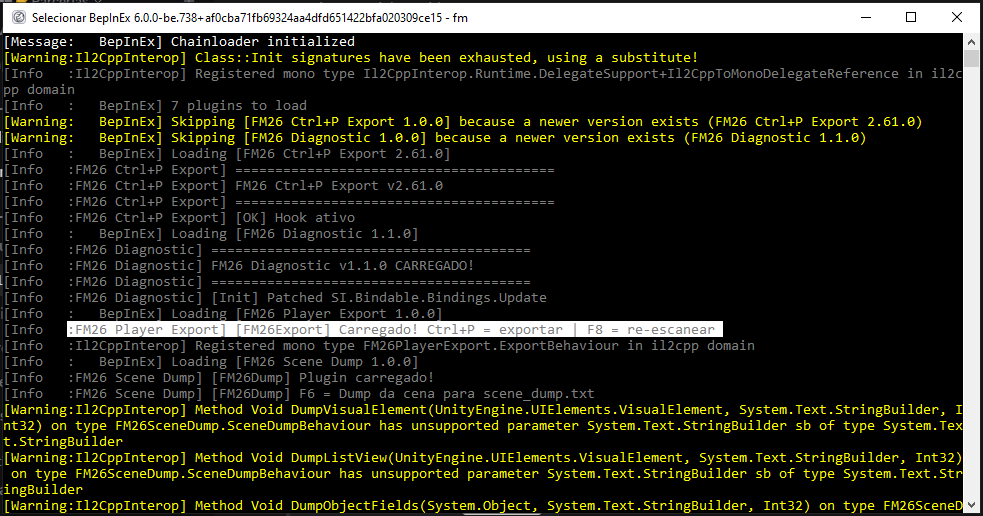
How to Export Players

From the Squad Screen
1. Open your club and go to the **Squad** tab2. Set up your view with the columns you want exported (position, age, salary, etc.)
3. Press **`Ctrl + P`**
4. Wait a few seconds — the plugin will automatically scroll through the entire list
5. A message will appear in the BepInEx console confirming the export
From the Player Search / Database Screen
1. Go to **Scouting → Player Search** or open the global player database2. Apply any filters you want (league, position, age, etc.)
3. Press **`Ctrl + P`**
4. The plugin scrolls through all results automatically
5. Done!
Where Is the CSV Saved?
The file is saved automatically to your **Football Manager 2026 documents folder**:Documents\Sports Interactive\Football Manager 2026The filename includes the date and time, for example:
player_export_20260310_235900.csvYou can open it with **Microsoft Excel**, **Google Sheets**, or any spreadsheet app. Make sure to choose **semicolon (;)** as the delimiter when importing.
Keyboard Shortcuts
`Ctrl + P` | Start export (auto-scrolls the full list)`F8` | Re-scan UIDocuments (use this if you switch screens)
`F9` | Start export (auto-scrolls the full list)
Tips
- Set up your view first. Only the columns visible on screen will be exported. Add the columns you need before pressing `Ctrl + P`.- Press `F8` when switching screens. If you export from the Squad screen and then switch to the Database screen (or vice versa), press `F8` first to let the plugin detect the new screen.
- Large databases may take a few seconds. The plugin scrolls one page at a time, waiting a few frames between each scroll to let the game load the data. Be patient.
- Stars are exported as numbers. A player with 4.5 ability stars will appear as `4,5` in the CSV.
Troubleshooting
The CSV is empty or shows 0 players→ Press `F8` to re-scan, then try `Ctrl + P` again. Make sure you're on the Squad or Player Search screen.
The export starts but shows very few players
→ Your list might be filtered. Check if there are active filters on the screen limiting the results.
Headers show Col1, Col2, Col3...
→ This means the plugin can't read the column names. Try pressing `F8` and then `Ctrl + P` again.
Nothing happens when I press `Ctrl + P`
→ BepInEx may not be loaded correctly. Check that the file `BepInEx\LogOutput.log` exists and contains plugin loading messages.
Still having issues?
→ Press `F9` and share the `BepInEx\LogOutput.log` file in the comments below. The diagnostic output will help identify the exact problem.
Version History
v.4 New F9 Hotkey - Now you just have to select the players, hit F9, and the entire export happens automatically. (The classic Ctrl+P is still there too). Moneyball HTML Export: That beautiful FM24 table is back! The plugin now delivers a complete CSV and an HTML file exactly like the old one.⭐ Clean and Organized: The files go straight to your Documents \ Sports Interactive \ Football Manager 26 \ FM26PlayerExport by vinteset folder.
v3.1.0 | Mar 2026 | Fixed Squad screen export (extra nesting level in UI tree)
v3.0.0 | Mar 2026 | Auto-scroll, star reading, F9 diagnostic, net6.0 framework
v1.0.0 | Mar 2026 | Initial release — Database screen only, visible rows only
Credits
Developed by vintesetFM — Football Manager content creator.▶️ YouTube
Plugin built with BepInEx + IL2CppInterop for Unity 6 / FM26.
*This plugin is free and open source. It reads data from the game's UI — it does not modify your save file in any way.*


![FM26 Data Tweaks [v3.6 | v5.3]](https://fmdatatweaks.com/wp-content/uploads/fmdt-cover.webp)




Discussion: FM26 Player Export v5.1 — How to Export Data to CSV and HTML
43 comments have been posted so far.
I get the same as you. It just doesnt work for me. Ive tried the guide here and in the README and it just doesnt do anything when i press F9 or Ctrl+P
I have strange characters in players' names and also in Transfer Value column. Does anyone know how I can fix this?
Thanks!
"[Info :FM26 Player Export] [FM26Export] 5 UIDocuments
[Info :FM26 Player Export] [FM26Export] PanelManagers: 1
[Info :FM26 Player Export] [FM26Export] Iniciando exportação via atalho: F9
[Info :FM26 Player Export] [FM26Export] Headers (12): Inf | Player | Nation | Club | Position | Age | Ability | Potential | Transfer Value | Wage | Recommendation | Knowledge
[Info :FM26 Player Export] [FM26Export] Captura iniciada...
[Info :FM26 Player Export] [FM26Export] Step 1: +0 | total=0 | scrollY=0 | fim=False | stall=1/3
[Info :FM26 Player Export] [FM26Export] Step 2: +0 | total=0 | scrollY=465 | fim=False | stall=2/3
[Info :FM26 Player Export] [FM26Export] Step 3: +0 | total=0 | scrollY=929 | fim=False | stall=3/3
[Warning:FM26 Player Export] [FM26Export] Parado por falta de novos dados.
[Warning:FM26 Player Export] [FM26Export] Nenhum dado."
I have reinstalled bepinex and got a fresh download of the plugin, updated graphics driver and it still doesn't work. Let me know if you can help. Thanks in advance bro.
I don’t know if this is the correct channel to ask, but I’m using a MacBook Pro M1 and I currently can’t get the export control+ P thing to work.
I tried to download both files for MacBook (mono & IL2CPP) but nothing works.
anyone else with MacBook that has figured it out?
Got the game files from discord where I had to get it activated
How do I run this mod on it without steam
hey man! I tried many things to test the online functionality, and in the end, what worked was renaming the winhttp.dll file to version.dll. Additionally, I added the FM folder as an exception in Defender. By doing this, the player export along with the online version worked here.
Mine exports to its own folder within the FM files - if anybody struggling to find the files
\Users\***********\Documents\Sports Interactive\Football Manager 26\FM26PlayerExport by vinteset
then within there - there is two further folders with what you need in there